Showing posts with label _Feedly/bloglovin/Google Reader. Show all posts

Friday, June 28, 2013

Feedly "follow" button

Just a couple of days ago, I did a Goodbye Google Reader post and one of the questions was about a Feedly Follow button.  I had talked about a Feedly button months ago and promised to tell you when they had an official button - but I hadn't looked in awhile.  Guess what?  They have a follow button!!

Here are a variety of Publisher Tools for Feedly.  One of them is "Add a feedly button to your site"!

You do need to use your feed URL (instead of just your blog address).
  • For blogger, it's your blog address plus "/feeds/posts/default".  For example, my blog feed address is http://joyfulcreationswithkim.blogspot.com/feeds/posts/default.
  • For other blog types, I don't know the details, but if you have your own blog in feedly (I LOVE to see my own posts come up in feedly) - you can check it:
    • Bring up just your own blog in feedly by clicking on it in the left column
    • On the main screen, right click on your blog name and select Inspect Element - a bunch of techie stuff will come up at the bottom of the screen
    • The highlighted part of the techie stuff is your blog name.  Scan across it until you find data-feedid="feed/.
    • The address after that starting with "http up until the next " is your feed URL.
The feedly button creator asks you to pick a button, give your feed URL, and then it asks you to click on the button to make sure it works.  I was slightly confused here as it sends you to feedly - you do have to hit the back button in your browser after that to go back to the button creator.  But then the code is there and it tells you how to add it to each type of blog!


For those of you struggling to get around feedly (or bloglovin or anything else new) - just remember - there is a learning curve to each of these.  I did an intro to Feedly in March which will help but know that Feedly has literally gotten millions of new customers since the Google Reader announcement and they have done an admirable job of updating their product to recognize the needs of those millions.  

Some of the things that I said feedly didn't do - it now does!!  For example, you can pin to Pinterest directly from feedly.  It also only worked in certain desktop browsers, there are more options now - details here.

And a few things have moved around, for example, you used to add blogs via a tiny little magnifying glass on the right side of feedly; now they have an obvious "+Add Content" on the left side.

The biggest thing to make you happier in feedly on your desktop is the magic j/k key to move between posts.  (iPad is easy - just swipe).  Feedly has keyboard shortcuts.  One of those is the "j" button.  When you bring up your first post to read and are done reading it, just hit "j" on the keyboard and the desktop will swipe to the next post!!  (Or use "k" to go backwards.)


It is a pain and I have a sinking feeling there is more to come from Google (see the annoying Follow button details on this post).  I really mourn the loss of these simple tools used by so many of us who would much rather be crafting or seeing what others have crafted than dealing with techie stuff.  But there are usually workarounds to everything (e.g. you don't really need the Follow button) and we'll keep figuring it out together!


Don't read below this line unless you are having problems - it will only be confusing!!
--------------------------------------------------------------------------------------------------

ETA: I've gotten a few e-mail questions already this morning and that's fine - if I can help, I would love to - but know that I'm a crafty person, not techie - I just happen to like tracking down problems!!  The bigger problem is that I'm leaving for the weekend and will only have my iPad along so won't be able to research things very well.  If I do have any updates based on problems I'm hearing about - I'm going to try to post them right here with updates to this post instead of doing a whole bunch of new posts.

1. A new Feedly user is getting a blank screen when trying to bring up Feedly.  Feedly posted this about people using the Chrome browser:
If you try to load http://cloud.feedly.com from a desktop browser and you get a blank page, it is most likely because a proxy is blocking it or one of your extensions is blocking it. Please go to chrome://extensions and temporarily disable and re-enable your extensions.
I actually had this blank screen happen recently when I was paying a college tuition bill - so this is Chrome specific, not Feedly specific. It's like Chrome is a little too aggresive about stopping things!!? Click on the three little lines in the upper right corner of your Chrome browser. Then click on Tools and Extensions.  After that, I don't what you are going to see because it entirely depends on what you have loaded on your PC - hopefully feedly's words above will give you some guidance about disabling and re-enabling!!

2. Using Internet Explorer.  Originally feedly didn't work at all on IE - I actually switched to Google Chrome just because of feedly, but I have to tell you that I have come to love Chrome.  However, feedly recently posted this - if anybody does it this way, let us know what you think -
We added a pure web access to feedly. You can point any browser tohttp://cloud.feedly.com and load your feedly. Including IE and Opera.

Wednesday, April 24, 2013

Fixing the missing bloglovin' folks!!

This is my second post today.


If you chose bloglovin' as your blog reader and then transferred your blog lists from Google Reader, there were two (that we know of) great blogs that bloglovin' could not find.  You may have "lost" these blogs and don't even know it.
Always Playing with Paper - the talented Lesley Croghan and the home of Merry Monday
GIBMISS - the wonderful Sylvie who takes all of her pictures using her Gibraltar ocean view in the background!
Bloglovin' readers need to add these blogs manually.  Pop over to each of these blogs and see what you have missed.  Then copy their blog address, bring up your bloglovin' account, paste them into the blog search box and click FOLLOW.  They will be back in your list so you can read all of their future posts!!


------------------------------


I am hoping you can pass the above info along in your posts too.  These ladies can't notify their bloglovin' readers that they are no longer lost - - - because bloglovin' readers don't currently get their posts - - oops!  So I would like to help them out and spread the word to get them back into people's bloglovin' lists.


Feedly Tags and Follow Buttons


I've written a number of educational posts on these issues.
Click here to see each of them.


First - a quick sidetrack - if you are still trying to decide between bloglovin' and feedly - I found this article called "Bloglovin' vs Feedly: Which RSS Reader Reigns Supreme?'  It's a great article that does a good job pointing out the pros and cons of each!


I have two quick updates regarding feedly for you - both are kind of more for the advanced user!


TAGGING IN FEEDLY
Feedly is getting ready to disconnect from Google Reader.  Right now, they are just a front-end to Google Reader so they are using Google Reader info.  When they disconnect, they are not only going to keep all of the blogs that you read, they are also going to bring over everything you have tagged in the past!!!!  Yeah!!!

But...they do need a little help.

Tagging is a great function that allows you to mark and then keep past posts.  For example, I might tag "Christmas" or "CASE-worthy".  Those posts are automatically saved and categorized until the point that you choose to un-tag them.

What feedly needs you to do is to tell your feedly account what tags you used when you were reading in Google Reader.  If you don't remember, pop back into Google Reader (although Google has already taken away the link - just go to www.google.com/reader) and find them.  They are listed on the left column, toward the bottom with little tag symbols.

Then go into feedly,

  1. Click on "prefs" right under your name and scroll down until you see "tagging"
  2. Type your list of tags into the box using commas to separate each tag.
Done!!


The exact wording with a helpful picture from the feedly blog is...


But we need your help regarding upgrading your tagged articles. We need you to go to your feedly preferences and enter the list of tags you have been using to archive old articles. We will migrate up to 250 articles per tag.
This is what my tag list looks like for example:Tag list


A FEEDLY FOLLOW BUTTON
Sadly, one thing that is lacking right now is a feedly follow button so that the people who read in feedly and want to add you can easily just click.

(Not that it's all that hard to simply copy your blog address and paste it into feedly - but buttons are nice!)

It is fairly high on feedly's update list - but if you want to add one now, I read about a way to do it.  It's not totally clean - so you might want to wait until feedly has an official button.  If you do create your own - I promise to tell you when feedly has an official button!

  • Find a feedly graphic - I just did a Google Image search and came up with this one.  If you like it just save this one to your computer.


  • Find your blog feed address.  (I only know how to do this for blogger).  It's your blog address plus the following "/feeds/posts/default"  For example, my blog feed address is:
                         http://joyfulcreationswithkim.blogspot.com/feeds/posts/default

  • Go to your blogger/design/layout area and "Add a gadget" to your sidebar, using an "Image" gadget.
  • Add a title.  I just said "For my feedly followers"
  • Add a caption.  The one flaw in this is that it actually just brings up your blog in feedly - it doesn't add it until the click the Add button in feedly.  So I just captioned it "Then click +ADD in feedly!!"
  • Add a link.  You need to type http://www.feedly.com/home#subscriptions/feed/your feed address.  For example, I typed:
                  http://www.feedly.com/home#subscription/feed/http://joyfulcreationswithkim.blogspot.com/feeds/posts/default
  
  • Add the image.  Browse your computer for the feedly graphic that you found or copied from above.
  • Save


I have re-organized my sidebar so that all of these major readers are listed.  My sidebar says:

     If you follow/read in blogger/blogspot
          This is the old "follow" button that we all already have.
     If you read in bloglovin'
           They already have a nice button.
           Just sign up for bloglovin' and find the follow buttons.
           (I don't use bloglovin', but I did sign up to get the button.)
     If you read in feedly
           I created it as above
     If you read via email
           Most of us already have it there.

I think I've covered the big ones this way!!


Hasn't this all been just a big adventure??  Not really one that I welcomed - but I have learned a lot!!

Sunday, April 21, 2013

A bloglovin'/Google Reader update

I've written a number of educational posts on these issues.
Click here to see each of them.

First - in answering an email question, it became apparent to me that not everybody knows what Google Reader is.  Let me tell you what it is NOT - if you are reading your blogs in blogger/blogspot - you are not using Google Reader.  Google Reader is a separate program.  So if I were you - I'd stay where you are until the dust settles.


Second, if bloggers are moving to bloglovin', you do not have to go there to continue to follow them.  Choose the blog reader that you like and that works for you - read in blogger/blogspot, go to feedly, go to bloglovin' - that's your preference - you can read any blog in the reader you choose.


Third, an important update on a bloglovin' problem:

There are blogs that can't be found in bloglovin' even though these blogs use blogger like so many of us and the blogs are found by Google Reader and feedly.  

(Some people are believing that you have to sign up for bloglovin' so that others can read you in bloglovin' - not true - so that is not the problem here.)

A blog friend reported that her blog was one that got "lost" and I got this wild idea to see how big this problem was.  I imported all of my Google Reader info into bloglovin'.  It turns out eight of all the blogs I read didn't import into bloglovin'!!.  Six of those actually let me add them manually - after I went to the work to figure out which were missing - YUCK.  But two of them are seriously broken.  For your information - because you most likely read them too - the two blogs that don't work are:

Always Playing with Paper - the talented Lesley Croghan and the home of Merry Monday
GIBMISS - the wonderful Sylvie who takes all of her pictures using her Gibraltar ocean view in the background!

FYI - if I comment on your blog with any regularity, 
you are in my list of blogs 
so I have double-checked you and you work!!

I'm not trying to insult bloglovin' because the simple fact is that all of these Google Reader replacements are frantically programming to accommodate everybody who is moving over and they are all having issues, but I am really upset for these ladies because:

1.
Bloglovin' didn't give any warnings that they were lost if you did an import from Google Reader.  Their followers do NOT know that they lost them.  Bloglovin' really needed to say "oops...some of your blog feeds can't be read by bloglovin'".

2.
They can't currently be added manually - you just plain and simple can't get them in bloglovin'

3.
Bloglovin's customer service only speaks techie.  We don't speak techie.  They say the rss feed isn't working correctly and you should contact your blog portal (which they say isn't blogger???) then they say try feedburner which is another place that only speaks techie!!  (My son's high school web design teacher is trying to translate for us!)


I will let you know when there is an answer - so you can re-add these wonderful blogs and any others that might be lost.

----------------------------------------------------------------

If you have moved to bloglovin' and imported your blogs from Google Reader - I would STRONGLY recommend that you check that all of your favorites came over!!!

If you have the same experience that I did, you can add a bunch of them back to bloglovin' manually - you just have to find them first.

If you are going to check - let me give you a few tips, because I learned a lot of hard lessons when I checked my blogs this morning - it took me forever.  Bloglovin' made some strange decisions when they designed their Google Reader import:

The short version - bloglovin' does not bring all the blogs over in the same folders or under the same names that you had them in in Google Reader!!!

The details -

1. Bloglovin's first priority is "blogger-following".  Those are the people that you clicked the "follow" button on.  When you click that follow button, those blogs show up in your blogger/blogspot dashboard and you could read from there.  The problem with putting this first priority is that bloglovin' then does not import the folder that you used in Google Reader.   If you think blogs are missing from a one of your Google Reader assigned folders, check bloglovin's "blogger-following" category they may be there!!  (You can clean this up by clicking on each blog and changing its category.)

2. Bloglovin' seems to be pulling "original" information in a couple of ways.

          a. Original blog names - if a blog has a newer name, it came over with its old name.

          b. Original folders - if you put a blog into a folder in Google Reader, and them moved it to a different folder, it comes over under the first folder.

So it's a bit of a hide-and-seek game - hopefully these hints will help!!

Saturday, April 6, 2013

It's FUSION time!!

If you are a bloglovin' user - be sure to read to the bottom of this post.

There's an amazing new challenge hosted by the amazing duo of Jackie Rockwell and Lesley Croghan who between them have started so many top challenge blogs, it's hard to list them all - CAS(E) this Sketch, Dynamic Duos, Muse, Freshly Made Sketches - and more!!

This challenge is called Fusion and you can use the sketch, the inspiration or both!  If this week's combo is a good sample of what's to come - this is going to be FUN!


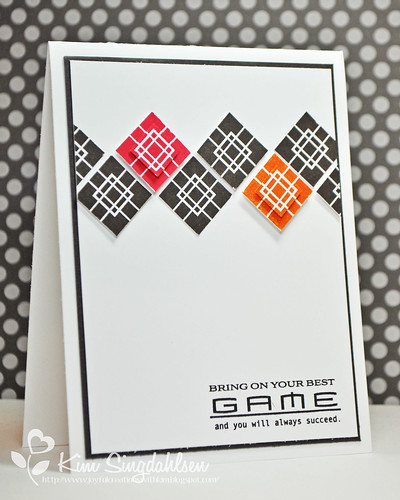
I absolutely had to make a card for my son before he got up this morning and headed out to take a big test that he is very nervous about.  So I was tied into a masculine card and couldn't use the flowers in Lesley's photo - but I did use two of the bright colors!

Your Best Game

I thought the graphic squares gave a video game impression, thus the sentiment.  Hopefully my son is not so literal that he things I'm actually talking about a "game"!?

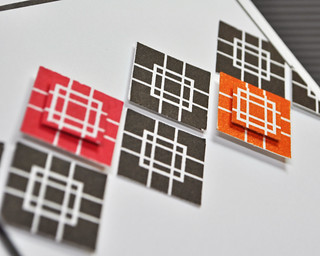
The interest in this card does not show up well in the photo.  Here's a close-up of the dimension.

Your Best Game closeup

I am definitely looking forward to being a regular player in this challenge.
  • Stamps: Papertrey Ink Square Prints, Boy Basics Game On
  • Paper: Papertrey Ink Smokey Shadow
  • Ink: Papertrey Ink Smokey Shadow, Poppy and Orange
  • Accessories: misc square punches and various heights of pop dots
Now a totally different subject.  As I have been posting about Google Reader, etc., a number of people have come to me for help and advice.  I love that because I am total geek and I love trying to track things down.  

First - I have written so many words, that I think I have not effectively communicated something very important.

If you didn't use Google Reader to read your blogs, 
you are absolutely NOT affected by its loss.
You will NOT lose followers.
You do NOT need to add anything to your blog.
Your blog will go on as usual!!!

But one of the recent problems shared with me is concerning - hopefully just a little concerning, but I really don't know....

A WARNING FOR BLOGLOVIN' USERS:

A fellow blogger was getting reports that bloglovin' users were not getting her blog updates and she came to me wondering what she had to sign up for at bloglovin' so that people who read her blog could keep reading her.  The answer is "nothing".  

Bloglovin' is used by readers of blogs to collect a list of their favorite blogs and then bloglovin' nicely tells them when those blogs have a new post.  It absolutely doesn't matter whether their favorite blogs are signed up for bloglovin' or not.  That's a definite fact and proof is that I signed up for bloglovin' to test this lady's problem and the day I signed up, I already had 69 people following me there - I did NOT need to be in bloglovin' to collect those followers.

But there appears to be something broken in bloglovin'.  When people try to add this lady's blog, it says NOT FOUND.  I am very concerned about people who simply moved everything all at once from Google Reader - I don't know if they even got a warning.  All I know is that her blog didn't make it over.  There is nothing unique about her blog - she uses blogger, and Google Reader and Feedly find her - I don't believe the problem is at her end.

Even more concerning is the fact that they have a problem form specifically for this issue - so it is NOT a one-time thing.  And what really annoys me, is that I submitted her blog as a problem days ago and I still haven't heard back.

I'll let you know when I finally hear - but in the meantime, if you have moved to bloglovin' - you really might want to check that all of your favorites are still there.

ON OTHER HAND:

Keep in mind that Google Reader users are moving by the millions to other blog readers.  Feedly reports 3 million new users in 2 weeks.  These blog reader companies are scrambling.  Not to mention the minor little detail that none of them will actually work when Google Reader dies as they were developed as a pretty front-end to Google Reader, using Reader's functionality - they have just a few months to program it all.  We have to have a little patience.  Feedly is pumping out updates as fast as they can.  They aren't all good - I'm definitely having some visual hiccups on my iPad Feedly after the last update. 

But knowing this doesn't help my friend with her bloglovin' problem.  We have to figure out how to get her in and then the bigger task is how to let people know that bloglovin' lost her!!
I'm hoping it is all working for you!!

{There's a label on my sidebar near the top of the list - Feedly/bloglovin/Google Reader - that yu can click on if you want detailed information}

Tuesday, March 26, 2013

Google Reader? Followers? Bloglovin? Confused??

This is my second post today.

Last week, I published an article on Feedly which is going to be my personal alternative to Google Reader.  As I read other blogs and get questions via email, I realize there really is a LOT of confusion about the whole thing.  It seems that a lot of people are connecting Google reader with the "follow" button and there is really no connection.  Let me try to clarify...
NOTE: I've only ever played in Blogger - I have NO idea what happens if you use Wordpress or Typepad and you press the follow button on somebody else's blog...but everything about Google Reader, Feedly or bloglovin' can work for you.
NOTE 2: A few of you get emails from blogs.  Personally, I read so many blogs I couldn't keep up that way.  That's not part of ANY of this!

Believe it or not, I've left out a ton of details already, BUT there is an even shorter summary towards the bottom that you can skip to if you don't want any details!!!


The characters:

The "Follow" button - (officially called "Google Friend Connect") - when you click on somebody's "follow" button, it puts their blog into your blogger feed.

Blogger - besides writing your own blog posts, you can use blogger to read the blogs that you have "followed" and it also gives you the ability to cut-and-paste blogs in that don't have the follow button.  You can read all of your favorite blogs in blogger...but it is JUST a list...nothing fancy!

Google Reader - completely unrelated to the "Follow" button and Blogger.  It's only a front-end.  It's a way to read blogs you love and it has more features than using Blogger.  You can put blogs into folders, you can tag them and save them, and you can just scroll through instead of clicking and looking at each one.

Feedly and bloglovin - two alternatives to Google Reader


HOW YOU READ OTHER PEOPLE'S BLOGS:

The plot so far...
  • That announcement did NOT mention the death of the Follow button.  
  • Just an FYI to cover my rear! Even though Google didn't announce the death of the Follow button there have been rumors back to 2011 that it was going away.  Google even officially announced that it would die in March of 2012 - but it's still around!!  Who knows what will happen in the future?
  • Blogger definitely still exists and there has been NO mention of taking away the ability to read blogs in it.
What this means for you...
  • It you "follow" blogs and read them in Blogger - you shouldn't be affected at all!!  Don't worry about Feedly's or bloglovin's or anything else that we are all talking about!! 
  • If you are a Google Reader fan - then you just need a new front end.  At this point, that is the ONLY thing that is changing!  
  • The two biggest replacements being mentioned in our cardmaking world are Feedly and bloglovin'.  I chose Feedly because it has an iPad app.  I wrote up a a tutorial on Feedly.  Bloglovin' looks good too - see more details below.


HOW TO GET PEOPLE TO FOLLOW AND READ YOUR BLOG:

The plot so far..
  • There has been a lot of concern that people won't be able to read your blog when Google Reader dies.  But...remember...Google Reader is ONLY a front-end.
  • Readers can still "follow" you. You will not lose your followers!!!  (But please note my CYA above just in case in goes away in the future!)
  • Readers can still read you in Blogger
  • Readers who switch from Google Reader to an alternative - can still read you.
  • Technically, you don't have to do a darn thing for people to still read you.
So why all of the bloglovin' talk?

First - it is really important for me to remind you of something that I said in my Feedly post - I suggested you all check out bloglovin' also - it looks very attractive.  It just doesn't work for me because they do not have an iPad app and I do 90% of my work on my iPad.
  • Bloglovin' is a front end - it replaces Google Reader
  • Bloglovin' has their own personal "follow" button - pretty cool!
    • IF you put their button on your site and IF your reader reads in bloglovin', it's just a simple way for them to add you.
    • IF you put their button on your site and your reader doesn't use bloglovin' - it doesn't help anything.


STILL CONFUSED?  HERE'S THE SHORT VERSION

The current "Follow" button adds blogs to blogger (if you have it) - handy dandy
          This HAS NOT changed
                  You WILL NOT lose followers.

The Bloglovin' button adds blogs to bloglovin' (if you have it) - handy dandy

If you read in blogger - click on the follow button
If you are going to read in bloglovin - click on the bloglovin button

Personally, I don't read in blogger or bloglovin' - so I don't use any of those buttons.

I used to read in Google Reader and will start reading in Feedly.  If I like your blog, I copy its address and I add it to Feedly, it saves it and I read it!  Easy peasy!!


WHAT ABOUT OTHER APPS LIKE FEEDDLER PRO?

I have loved, used and promoted an iPad app called Feeddler Pro.  There are also hundreds of others like it.  They are all front-ends to the Google Reader front-end!  They just make Google Reader look or act a little differently.  They CANNOT function without Google Reader.  They are all scrambling right now.

Even Feedly and bloglovin' won't be able to function.  But...in researching Feedly, they have been working for quite some time to add the functionality they used to get from Google Reader.  I've not researched bloglovin' to know where they are in the curve.  Fingers crossed on both of them that they will be ready on July 1st.


My guess is that it is still clear as mud!!  But I love getting your question - and I will continue to answer and research anything that you want to know!


Google Reader Graphic-001

Monday, March 18, 2013

Intro to Feedly - a blog reader

ETA: I have received lots of questions on the whole situation and I ended up writing this post with some basic definitions that hopefully clarify things.

After shaking off my shock at the demise of Google Reader - I started looking around for an alternative and have found a fantastic option.  If you loved Google Reader or even if you've never used a blog reader - perhaps you read your blogs in Blogger Dashboard or you have had them emailed - you should keep reading!!

There are three very important reasons to have a reader of some sort:
  1. It will find any new blog posts - you don't have to go to each of your blogs to check!
  2. It allows you to categorize your blogs and your posts
  3. It allows you to save and file posts that you want to keep

Just a couple of details:
  • Many of the other blog readers out there may not be called Google Reader, but they are based on Google Reader.  They are only a front-end - they do not have the functionality of tracking blogs.  I currently used Feeddler Pro on my iPad.  It is ONLY a front end - so unless they do some major modifications, it will cease to work on July 1.  They have tweeted that they will not go away - but no details yet.  That does concern me - I have read that it is a significant job to add all of the Google Reader functionality and I find it hard to believe they will meet the 7/1 deadline.
  • Personally I have two criterion - I want it on my desk top and I want it to sync with my iPad.  This did rule out one that many card bloggers seem to be excited about - bloglovin.  So far they don't have iPad so I didn't explore them at all.  Their desktop seems very attractive and they have already added instructions for those coming from Google Reader.


My choice  is Feedly (and frankly it probably beats my long-time fave Feeddler Pro).


Currently, Feedly is also only a front-end, but well before Google announced the death of Reader, they had been working on their own functionality.  They shot to #1 on the iPad app sellers with 500,000 new users in 48 hours because they are calmly and confidently on top of it!  (Cut them a little slack in the first few weeks - that's a lot of volume all at once!)

If you are a current Google Reader user - you can import all of your blogs into Feedly now 
and they will be captured by Feedly before Reader goes away.

Here are my tips and hints on Feedly.

USE WITH PINTEREST                                                
Feedly currently has lots of sharing options but they don't yet have Pinterest.  Run here to their Suggestions forum and vote on adding Pinterest!!


DESKTOP                                                                                   

GENERAL
Just go to www.feedly.com and download!  BUT - they only support Firefox and Google Chrome, not Internet Explorer (IE).  I have to tell you that I hung on to IE for a long time while my kids hounded me to move on.  They finally wore me down, I installed Google Chrome, and now I'll never go back to IE.  Chrome is faster and cleaner!
 When you log in, it brings in all of your Google Reader blogs.  
Isn't it pretty??!! 


OR - if you don't use Google Reader - just start adding blogs!! 
ADDING BLOGS
Just click the "+Add Website" button on the left column.
You can paste the URL there or search by a person.  You can also search by a subject using a hash tag.  Try #stamping - LOTS of good results! 
ORGANIZING

      Categories
If you want to add a category, you click on "Organize" just below your name.  You then just drag a blog to the new category section and it's added!!
I like to keep my blogs organized by such things as Challenges and Companies and Friends.
      Specific blogs within categories
If you have added categories - you will see this on the left panel.  Just click on the arrow next to the category and it will "open up" to show you all the blogs.  Click on the blog to view.  It sorts out very nicely by date.
      Tags
If you know what tags you want, you can them in the Preferences section.  Just type them in with commas in between.
You can also add new tags while you are reading.  It's at the top of the post - just click on "+tag".  All the tags you have already added will be listed - just select it if you want it - or there is a "Create Tag" to add a new one.
Then at any time, the tags are listed in the left column - click and you can see anything you tagged.
 I have tags for such things as "Must CASE" or "Read Later".  You could also tag by such things as holidays, occasions, etc.

READING YOUR BLOGS

      Views
There are multiple options for viewing.  There's everything from just a list of titles to a "card" view!!  Besides the list view, all the others are very photo-based so it's a great way to scroll through your card blogs.
To change them all - go to Preferences and look for "default view".  I like "card" view but I'm sure I am just biased by the name!! 
ADVANCED: You can also change the view by each category or blog by clicking on the gear icon when you are in that category or blog.
      Read/Unread/Saved
I like reading by category but you could also click on "All" which really isn't "all" - rather it's "all unread".  
When I first click on the category - I have all the pictures in front of me.  You can scroll up and down just to see the summaries of all of the loveliness that awaits you!
Reading One Post at a Time 
If you want to just look at a few selected posts, just click on the post.  You can save it (the pennant icon), tag it or many other sharing options - or just read it!  When you are done click on the "x" to shut it down.  Feedly knows you are done and won't show you the post again. 
If the rest of the posts don't interest you, Feedly doesn't know that!  You have to click on the checkmark at the top of the page that will tell Feedly  you've "read" them all.  Feedly won't show you those posts again.  (There are some things you can mess with in Preferences about marking things as unread - but they scare me - I want to choose that they are unread.)
Reading All Posts 
I don't tend to read just certain posts - there might be more cards and info than just that first picture and I don't want to miss anything.
To read/glance through everything, click on the first post to big it.  You could still read one post at time by using the "x" to close it and then click on the next post.  OR - use the magic "j" key.  Just typing "j" moves you to the next post!!  (And "k" moves you backwards!) 
ADVANCED: I was having some problems when I was using "j". I got done and some of the blogs still showed up like I hadn't read them.  It turns out that I was clicking through too fast - there is a time delay.  In Preferences, toward the bottom there is an Auto-'Mark As Read' On Selection.   Change it to -1 and it will know that you have read it just as soon as you selected it.
Saving, Tagging 
If you want to tag the post, just click on "+tag" toward the top center.  Select a tag or create a new one.  Then anytime that you want to view tagged, items just click on them from the list on the left.
If you add a tag, that post is technically "saved" as it will always bring up that post when you select the tag.  But sometimes, I just want to save it because I want to do something with it later.  Just click on the pennant icon at the top.  (It's like starring it in Google Reader.)  Then you can retrieve it later from the left sidebar by clicking on Saved. 
There is an option at the top of the post to keep it unread.  I don't like using it, because if you just happen to scroll by again without meaning to - it becomes unread and lost!  I'd rather save it and make the decision later to unsave it.
Commenting or Pinning
Click on the title of the post and it will open in your browser so you can comment or pin.
Saving an Image
Right click and save!
      Looking at Older Posts
If there are no new posts and you click on the blog in the left sidebar - it shows you everything from new to old. 
Also in the gear icon is something you can click to toggle between looking at unread and all.  I leave it at "unread" but sometimes I know there was something on a blog that I want to find - I unclick "unread only" and then I can see everything.

iPad                                                                             

(There are also iPhone and Android and Kindle apps - I haven't looked at them.)

Since Feedly currently syncs through Google Reader - the iPad and desktop stay in sync!!

Unfortunately, there are some shortcomings in the iPad version.  There are things that it doesn't have but it typically makes up for it in how easy it is to use.  It still works for me - I love to view on the iPad which it does very well. The things that it doesn't do well are things that I would have done on the desktop anyway.  (The only major problem is tagging which is detailed below.)


GENERAL
Just go to app store and download!  Right now, it's free.  It would surprise me though if they don't start charging when it turns to Feedly Pro and has Google Reader functionality!
 When you log in, it brings in all of your Google Reader blogs.  
It's even prettier!  Here's the menu screen.

 Here's what it looks like when you are reading.

If you don't use Google Reader - just start adding blogs!!
 ADDING BLOGS
Just click the search icon (the magnifying glass) in the upper right corner.
You can paste the URL there or search by a person.  You can also search by a subject using a hash tag.  Try #stamping - LOTS of good results! 

ORGANIZING

      Categories
Very sadly, you cannot currently add categories on the iPad.  They do come over from Google Reader or the desktop Feedly but you can't add them or rearrange them on the iPad.  So you have pop over to the desktop, set up your organization structure and then come back to the iPad.
Honestly, this works for me.  I LOVE reading on my iPad, I don't like typing on my iPad.  If I am going to do any major rearranging or typing, I'm going to do it on my desktop anyway.
I like to keep my blogs organized by such things as Challenges and Companies and Friends.
      Specific blogs within categories
If you have added categories - you will see this on the left panel.  Just click on the arrow next to the category and it will "open up" to show you all the blogs.  Click on the blog to view. Another little iPad flaw - the desktop sorts nicely in reverse date order - the iPad seems random.
      Tags
Very, very, VERY sadly - you not only can't add tags on the iPad, you can't even view them.  This is the most substantial problem that I have found in all of Feedly.  I like tagging - and if I can't do it on my iPad, it becomes extremely cumbersome - I have to save it (see later), then go to my desktop, and tag it.  This is already in Feedly's error forum as a high priority item, although they are the first to admit that their priorities were changed slightly with the loss of Google Reader.
I have tags for such things as "Must CASE" or "Read Later".  You could also tag by such things as holidays, occasions, etc.

READING YOUR BLOGS

      Views
There are multiple options for viewing.  There's everything from just a list of titles to a "card" view!!  Besides the list view, all the others are very photo-based so it's a great way to scroll through your card blogs.  (The list view isn't currently working on the iPad but I figure cardmakers like to see photos so no big deal.)
The desktop has a default view - the iPad doesn't, but it's still simple.  Just pop into the category (your categories or "today" or "latest") or blog by clicking on the gear icon when you are in that category or blog.  I just set them all once the first day.
      Read/Unread/Saved
This is where the iPad shines. 
I like reading by category but you could also click on "All" which really isn't "all" rather it's "all unread".  
When I first click on the category - I have all the summary pictures in front of me. If you want, you can swipe up and down to see all of summaries of blog posts.  (It's such a visual reader, that it just feels good to swipe up and down and get a preview of all the loveliness that you are about to see!)  ADVANCED - you can change this from an up and down swipe to a side swipe or a scroll in Advanced Settings.
Reading One Post at a Time 
With the easy swipe function of an iPad - you really don't have to read one post at a time.  It's so easy to swipe through everything - see the next section!
Reading All Posts 
Tap on the first post to make it big.  Read it, then just swipe from right to left to bring over the next post - SO easy!! 
As you are swiping, Feedly is marking them as read so they won't show up again. 
Saving, Tagging 
Bummer - no tags yet. (But it's a high-priority fix for Feedly!)
But you can save a post.  Just click on the pennant icon at the top.  (It's like starring it in Google Reader.)  Then you can retrieve it later from the left sidebar by clicking on Saved. 
There is an unread button (tape on the sharing icon (rectangle with arrow out)) then tap on the open circle - it keeps it unread.  I don't like using it, because if you just happen to scroll by again without meaning to - it becomes unread and lost! 
Commenting or Pinning
When you are in a blog post, click on the clock-looking icon in the upper right and the post will open in Safari.  You can comment and pin from there.
 Saving an Image
Tap and hold with one finger and you will get the save menu.  FYI - a short tap bigs it if you just want to see it better.
       Looking at Older Posts
If there are no new posts and you click on the blog in the left sidebar - it shows you everything from new to old. 
Also in the gear icon is something you can click to toggle between looking at unread and all.  I leave it at "unread" but sometimes I know there was something on a blog that I want to find - I unclick "unread only" and then I can see everything.
I have noticed that the iPad doesn't always sort based on time when you do this.  It's not totally off but you'll get a brand new post, then a post from a week ago, then yesterday's, etc.  But since you can look at a lot of posts at once, it's easy to scroll through until you find what you want.
      Other Strange iPad Issues
Sometimes Feedly doesn't seem to update on iPad
If you ever bring up Feedly and nothing has changed - you need to shut it down all the way.  When you open it again, it will be updated. (This seems to be an intermittent problem - it doesn't happen often.)  
Did you know that multiple apps can run at the same time on your iPad?  Apps stay "open" even when you aren't in them.  Swipe up on your iPad screen with all four fingers to see all open apps.  Push and hold on one of them until the apps start "dancing".  Then close them by tapping on the "x".  (If you didn't know any of this and you think your iPad is slow - shut them all down.  It will help!
Sometimes There is Strange Formatting
If you are reading this post on Feedly on an iPad - you'll know what I mean!!!  To indent on blogger, I use the quote mark icon which on any other reader just indents.  But Feedly on the iPad shows a big quote mark.  I don't know why - it just does.  If you find a strange formatting issue, just click through to the website and it will look fin! 

A FEW MORE THINGS TO KNOW
Linky lists do not show up in Feedly - but they didn't in Google Reader or Feeddler Pro either. A number of my favorite challenges are showing their winners in a Linky list.  You do have to open them to the internet to be able to see the linky list.
I don't believe Feedly has the functionality to search within all of your blogs.  Google Reader has it and I used it once in awhile.  For example, if I remembered that someone had used a specific stamp set but I couldn't remember who or when, Google Reader had the functionality. 
Feedly is promising weekly updates to get themselves ready to totally take over for Google Reader.  Right now, their stated priorities are #1 keeping the site up and #2 listening and adding features.  This is good - but may also mean that my document is out-of-date each week.   
Have fun with it!!  Please comment with any questions or further comments.